
EMUspace guide · PlayStation 1 on iPhone
PS1 emulator for iOS: your iPhone setup guide
Play your own PlayStation 1 games on iPhone with EMUspace. Prepare a complete game-file set, import it into your library, then check controls and saving before your first long session.
Start with one game you are authorized to use. This guide explains what to keep together, how optional BIOS files fit into setup, and what to check if a game will not launch.
Get EMUspace on the App StoreFor iPhone · iOS 17.6 or later · Games and BIOS are not included
On this page
Prepare your PS1 game files
Still choosing a game? Explore our eight PS1 picks by genre before preparing your first import.
Install EMUspace from the App Store on a compatible iPhone. Have your game files ready in Files and keep an untouched copy of the originals. Check that cloud downloads have finished and that your iPhone has room for the import.
A PlayStation disc backup can contain several related files. Before moving anything, inspect the entire set rather than selecting only the largest file. Keep the original names and folder structure until you know which files belong together.
Why CUE and BIN files belong together
In a CUE/BIN disc image, the CUE file describes the disc’s tracks and refers to the associated data files. Its small size does not make it disposable. Keeping only the CUE leaves out the game data; keeping only a BIN can lose the description of how the tracks fit together.
If your backup uses this arrangement, preserve the CUE and all referenced track files. Renaming a referenced file can break the link to it. These are file-organization checks; use EMUspace’s in-app import guide to confirm support for your particular file set.
Archives and multi-disc collections
EMUspace accepts supported ZIP, 7z and TAR archives. The archive still needs to contain compatible game files. Changing an extension does not convert a disc image or repair an incomplete download.
For a game supplied on several discs, keep each disc’s files identifiable and retain the originals. Do not merge track files from different discs into one set. Before relying on a multi-disc playthrough, check the app’s guidance or ask support about the workflow for that title.
For a closer choice within a genre, compare PS1 racers by driving style, explore PS1 platformers, or choose a PS1 survival-horror adventure.
How to add a PS1 game to EMUspace
- Locate the complete file set in Files. Finish any pending downloads. If you have several versions of the same game, choose one and keep track of which version you import.
- Follow the in-app import guide. For supported files and archives, you can use Open With → EMUspace from Files. Consult How to import inside the app when preparing a set with several related files.
- Wait for the import to finish. Check for the game’s card in the library before attempting the same import again. Record any error message if the operation stops.
- Run a short test. Open the game, reach its menu and try a few minutes of gameplay. Check controls, picture and sound before committing to a longer session.
For download and archive issues, follow the game import checklist. A successful import means the game has reached your library; it does not establish compatibility with every part of the game.
Do you need a PS1 BIOS file?
A BIOS is console system software, separate from a game’s disc image. EMUspace’s App Store description lists BIOS files as optional and says they are not bundled with the app.
Follow EMUspace’s own setup guidance. If you choose to import a BIOS, use a file you have the right to use. A BIOS filename or setup path from another emulator may not apply here.
If you see a BIOS-related message, copy its exact wording and note what you were doing when it appeared. Check the in-app guidance or contact support before replacing files. A black screen alone does not identify the cause, and adding a BIOS is not a guaranteed fix for every launch problem.
Check controls and saving before you play
Start with the on-screen buttons and analog controls. Compare portrait and landscape layouts and test the controls your game uses. Compatible external gamepads are available with EMUspace Pro.
In-game saves and save states are different
A game’s own save system and an emulator save state serve different purposes. For PS1 games, an in-game save typically uses the game’s memory-card menu or a save point. A save state captures an emulator session so it can be resumed from that point.
EMUspace Pro includes saving and loading states and optional autosave on exit. Free gameplay has no time limit. See the save-state and controller guide for more details.
- At an early, low-risk point, try the save method you intend to use.
- Check that you can resume the expected progress before investing hours in a session.
- Before loading an older state, remember that it returns the running session to an earlier point.
Do not assume that a forced closure preserves the latest progress. Keep your original game files, and avoid deleting the app or library while investigating a save problem.
If a PS1 game will not start
| Symptom | First checks |
|---|---|
| No game card after importing | Check download completion, free storage and the complete file set. Consult the import guide for your file type. |
| Black screen or return to the library | Record whether it happens immediately or after a logo or menu. Note the game’s region or revision if known and any error message. |
| Missing audio or a repeatable loading failure | If the source has multiple track files, check that none were omitted or renamed. Record the exact scene or action where the issue occurs. |
| BIOS-related message | Use the message and the app’s setup guidance to identify what is needed. Keep BIOS files separate from game data while organizing your originals. |
| Progress does not resume as expected | Identify whether you used an in-game save, a state or autosave. Note the last successful save and what happened before the problem. |
Compatibility and performance vary by title and device. Change one thing at a time so you can tell whether it helped. For support, send your iPhone model, iOS and app versions, game title, file extensions, the exact symptom and steps to reproduce it to support@emuspace.app. For a step-by-step diagnosis, use the PS1 games not loading checklist to separate import, launch and gameplay problems.
Common questions about PS1 on iPhone
Do I need to jailbreak my iPhone?
No. Install EMUspace through the App Store on a compatible iPhone. Check the listing for current device requirements.
Does the app include PlayStation games or BIOS?
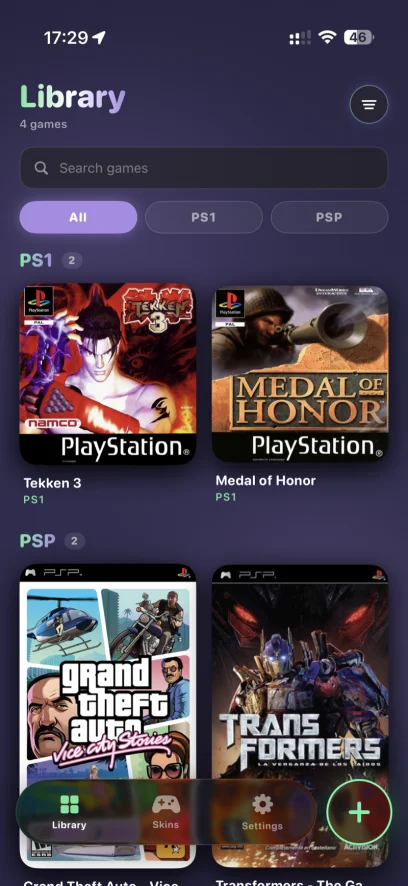
No. Bring your own compatible game files and any optional BIOS you are authorized to use. The screenshot illustrates an imported library.
Can I delete small files from a disc backup?
Keep the complete original set until you know what each file does. A small descriptor file may be needed to interpret much larger track files.
Is this guide also for PSP games?
PS1 and PSP are different systems. EMUspace supports both, but file preparation can differ. Use the PSP emulator setup guide for iOS for PlayStation Portable games.