
EMUspace guide · PSP on iPhone
PSP emulator for iOS: play on iPhone
Start your first PlayStation Portable game in EMUspace. This guide takes you from installing the app to importing a game, choosing controls and checking that your session works as expected.
Download EMUspace from the App Store, bring a compatible game file you are authorized to use, and follow the setup below. You do not need to jailbreak your iPhone to install the App Store version.
Get EMUspace on the App StoreFor iPhone · iOS 17.6 or later · Games are not included
On this page
What you need before you start
Choosing your first game? Explore our eight best PSP games to revisit, with suggestions by genre and play style. For a closer comparison within a genre, explore PSP RPGs by story and combat style. If you prefer shorter events, compare PSP racing games by driving style or choose among PSP fighting games by combat system.
- A compatible iPhone. The current App Store listing requires iOS 17.6 or later. Check the listing on your device before downloading.
- EMUspace from the App Store. Use the store link above to find the app.
- Your own compatible PSP game file. Have it ready in the iPhone Files app. The emulator does not supply a game collection.
- Room for the import. Keep free storage available for the source file and any contents extracted from an archive.
Start with one game. It is easier to identify a problem with a single import than with a whole collection. Keep an untouched copy of the source file so you can investigate an interrupted import without losing the original.
A game file and an archive are different
EMUspace’s published import options include supported ZIP, 7z and TAR archives. An archive is a container: it still needs to contain a compatible game. A familiar archive extension alone does not establish that its contents can run.
Do not rename a file extension to make it look compatible. If you are unsure about a particular game-file format, check the in-app import guide or contact support with the extension. See the game import guide for more on incomplete files and archives.
How to import your first PSP game
- Find the file in Files. If it is stored in iCloud Drive or another cloud location, finish downloading it to your iPhone before continuing. A visible filename can still represent a file that is not available locally.
- Open it with EMUspace. Use the supported Open With → EMUspace action where available. The wording and placement can differ by iOS version. EMUspace also provides an in-app How to import guide.
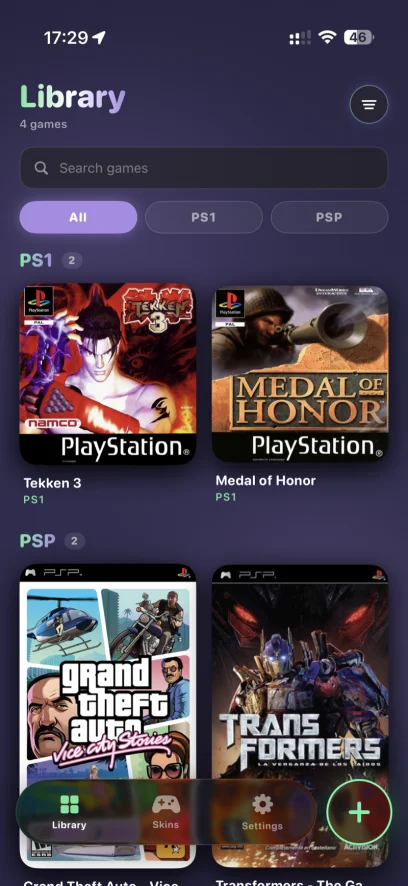
- Wait for the import to finish. Avoid starting the same import repeatedly while it is still running. Check for the game’s card in your library when the operation completes.
- Launch a short test session. Open the card, reach gameplay if possible, and test movement, the main action buttons and audio before settling into a longer session.
If the game never appears in the library, start with the file and import checks below. If it appears but fails after launch, record the point where it stops. These are different symptoms and need different troubleshooting.
Choose your controls and plan how to save
EMUspace offers on-screen buttons and analog controls, with portrait and landscape layouts. Try landscape for a wider view, then compare portrait mode. Check whether you can comfortably reach the buttons used in your game without covering important parts of the screen.
Compatible external gamepads are an EMUspace Pro feature. Pair a supported controller with your iPhone using its manufacturer’s instructions, then test it inside a game. If one button does not respond, compare the same action using touch controls and note the controller model.
Know what requires Pro
Free play has no time limit. Save and load states, optional autosave on exit and compatible external gamepads require EMUspace Pro. Check the App Store for the current subscription options.
A save state records an emulator session; an in-game save uses the game’s own save system. Before relying on a new state, create and load one at a low-risk point. Loading an older state returns the running session to that earlier point.
If you use autosave, check that the option is enabled. Do not assume that a crash or forced closure will preserve your latest progress. The save-state and controller guide explains what to check before a longer session.
If your PSP game does not work
Identify the first step that fails. A file that cannot be imported is a different problem from a game that imports and then shows a black screen. Follow the PSP games not loading checklist for checks matched to each symptom.
| What you see | What to check first |
|---|---|
| File is unavailable in Files | Confirm its location and download status. Make sure the download is complete before attempting the import. |
| Import stops or no library card appears | Check free storage, file completeness and whether the contents are for the intended system. Record any error message and consult the import guide. |
| Game imports but shows a black screen or closes | Note whether the failure happens immediately, at a menu or during gameplay. Record the game version or region if known; importing successfully does not guarantee compatibility. |
| Picture or sound is inconsistent | Try to reproduce the issue in the same short section. Record the iPhone model and app version. If you change a setting, change one at a time and compare the result. |
| External controller does not respond | Check its charge, iPhone connection and your Pro access. Compare with touch input, then record the affected buttons and controller model. |
Compatibility and performance vary by game and device. A setup that works for one title may not resolve another title’s issue. Avoid deleting the app or game library as your first troubleshooting step, especially when it contains progress you want to keep.
Send a useful support report
Email support@emuspace.app with your iPhone model, iOS version, EMUspace version, game title, file extension and the exact symptom. Include the game’s region or version if known and the steps that reproduce the problem. Start with a description or an error screenshot; there is no need to send the game file with your initial report.
Common questions about PSP emulation on iPhone
Can I install EMUspace without jailbreaking?
Yes. EMUspace is distributed through the App Store. Check that your iPhone meets the current requirements, download the app and prepare your own compatible files.
Does EMUspace include PSP games?
No. Supply compatible game files you own or are authorized to use. The library screenshot illustrates how imported games can appear; it is not a list of games included with the download.
Can I play for free?
Yes, the free version has no gameplay time limit. The save-state and external-gamepad features described above require Pro.
Can I keep PS1 and PSP games in the same app?
Yes. EMUspace supports both systems in one library. Follow the PS1 setup guide when preparing a PlayStation 1 game; do not assume that its file requirements are identical to PSP.
Will every PSP game run the same way?
No. Compatibility and performance depend on the game and device. Test your intended game and report repeatable issues with the details listed above.